
How-to videos
One task each. Watch the video or follow the pictures.
1Get into the app
Or follow the steps:
1. Look for your invite email from VIVE Coaching. Tap the link inside it and make a password.
2. Download the VIVE Coaching app. It is free in the App Store and on Google Play. This is the icon.
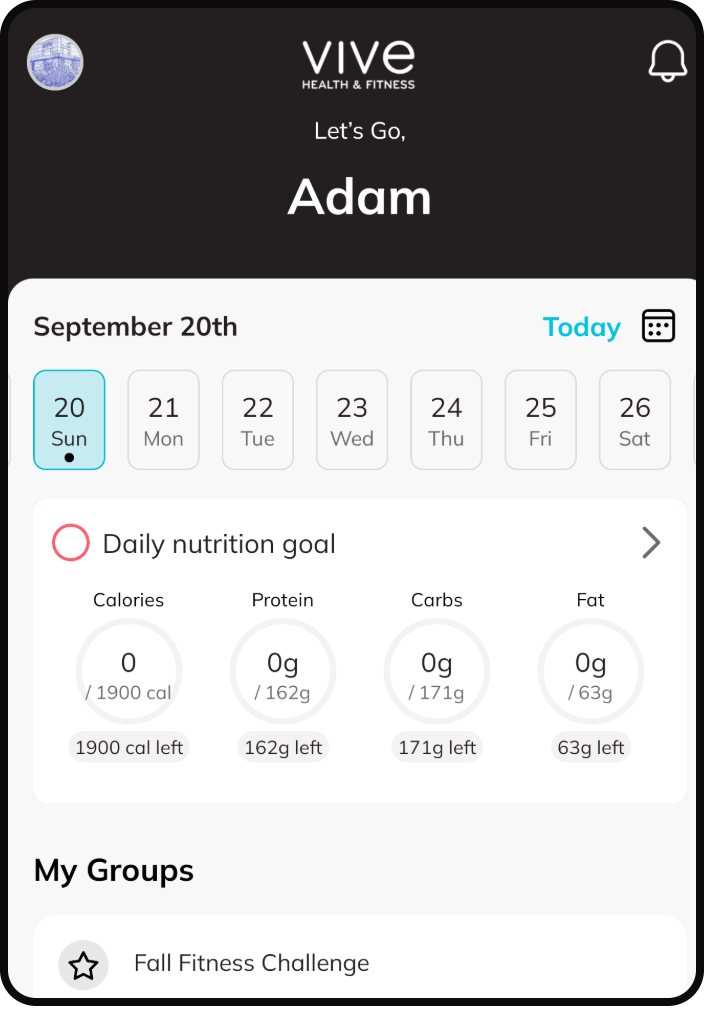
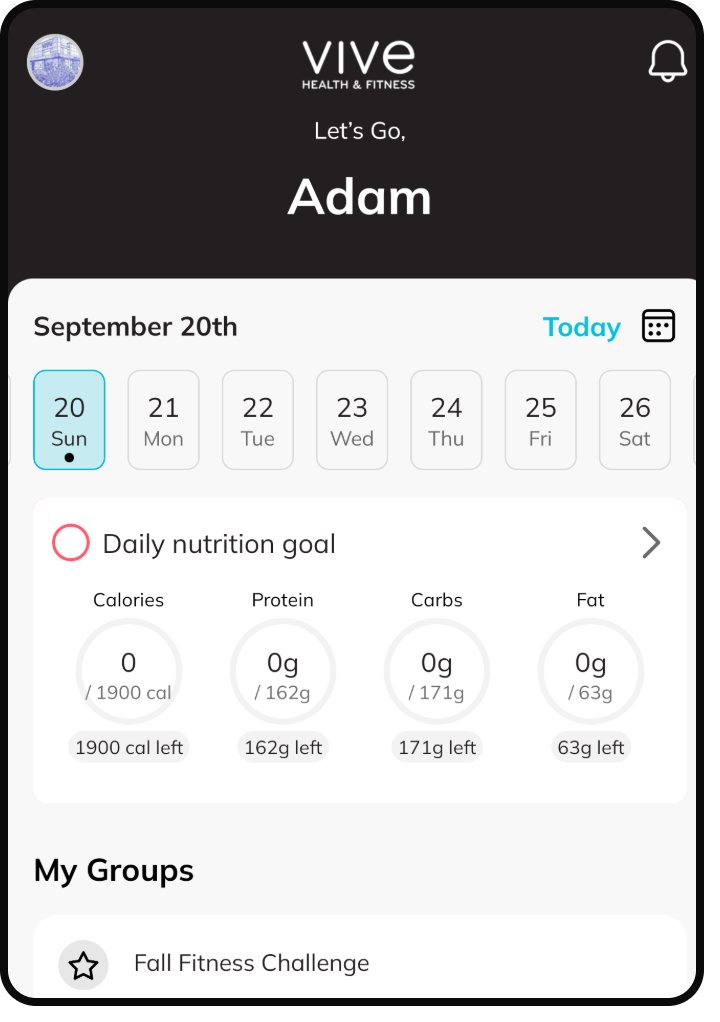
3. Open it and sign in with your email and new password. This is your Home screen. Everything for today shows up here.
4. When your phone asks about notifications, tap Allow. That is how your daily message reaches you.
2Do today's workout
Or follow the steps:
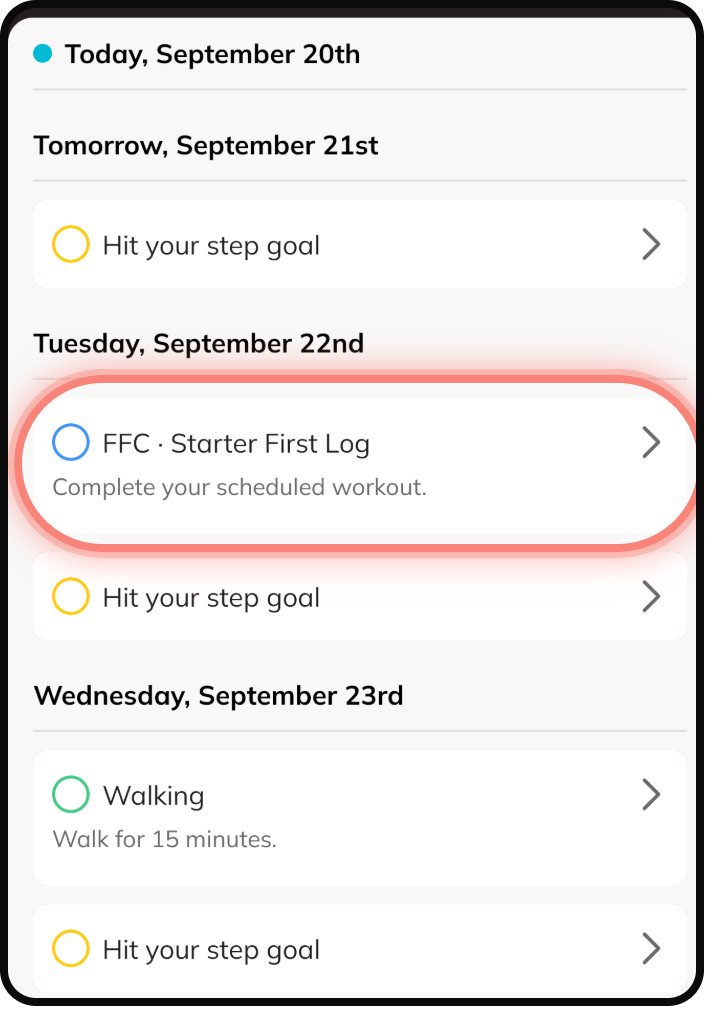
1. Find your workout on your Home screen or Calendar and tap it.
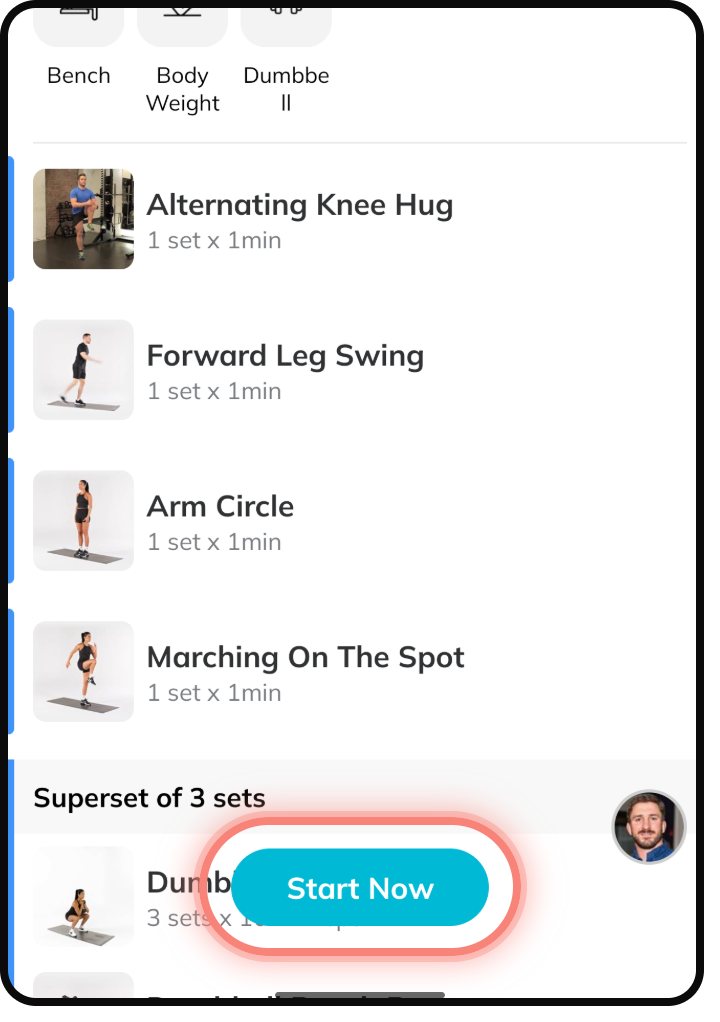
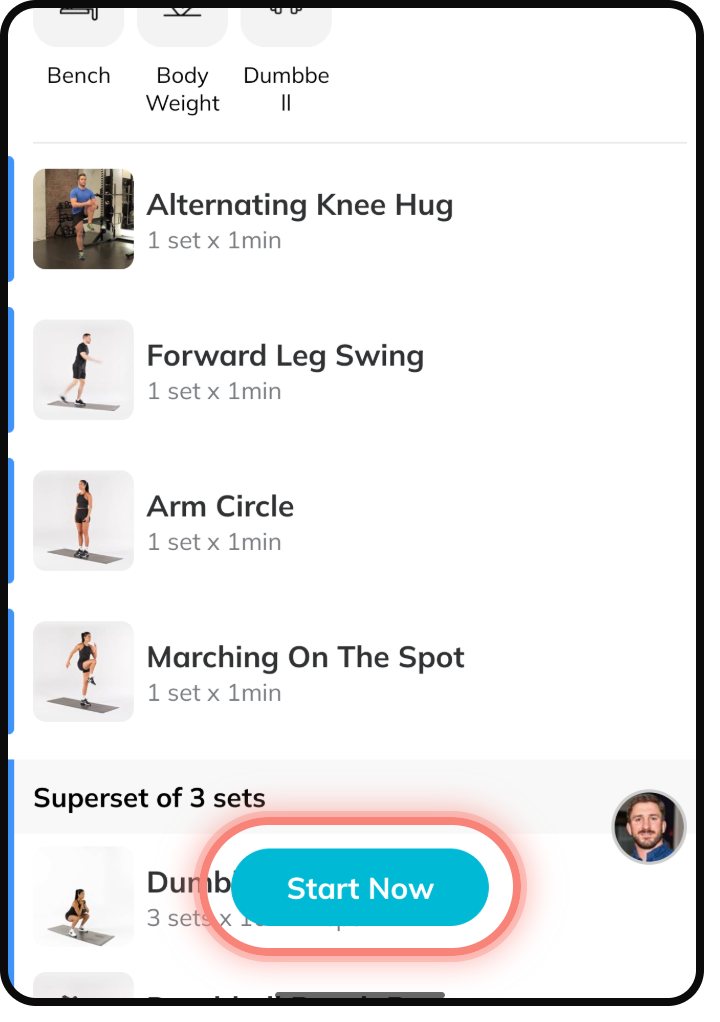
2. Tap the blue Start Now button.
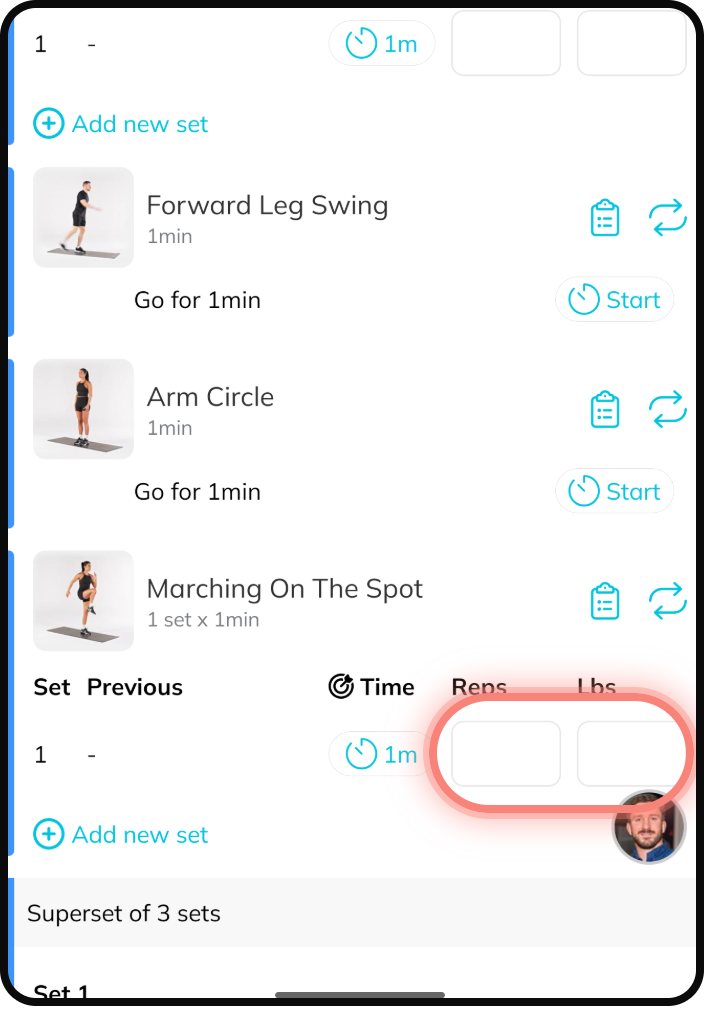
3. After each exercise, type your reps and the weight you used.
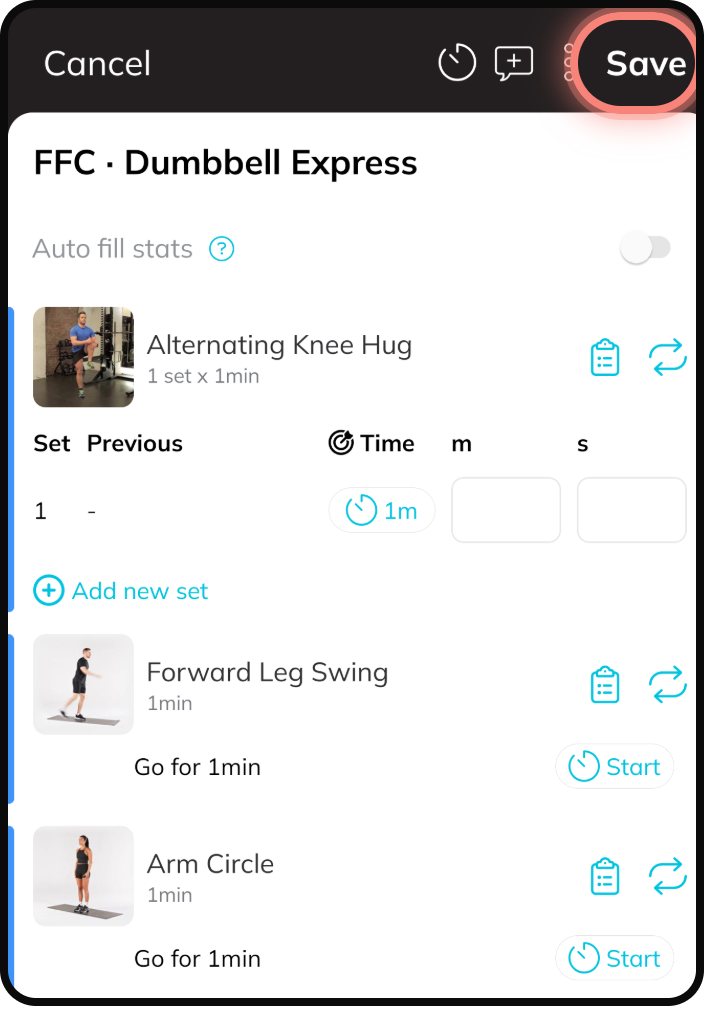
4. When you finish, tap Save in the top right corner. That is it. Your workout is logged.
3See how to do any exercise
Or follow the steps:
1. Not sure how to do an exercise? Tap its name.
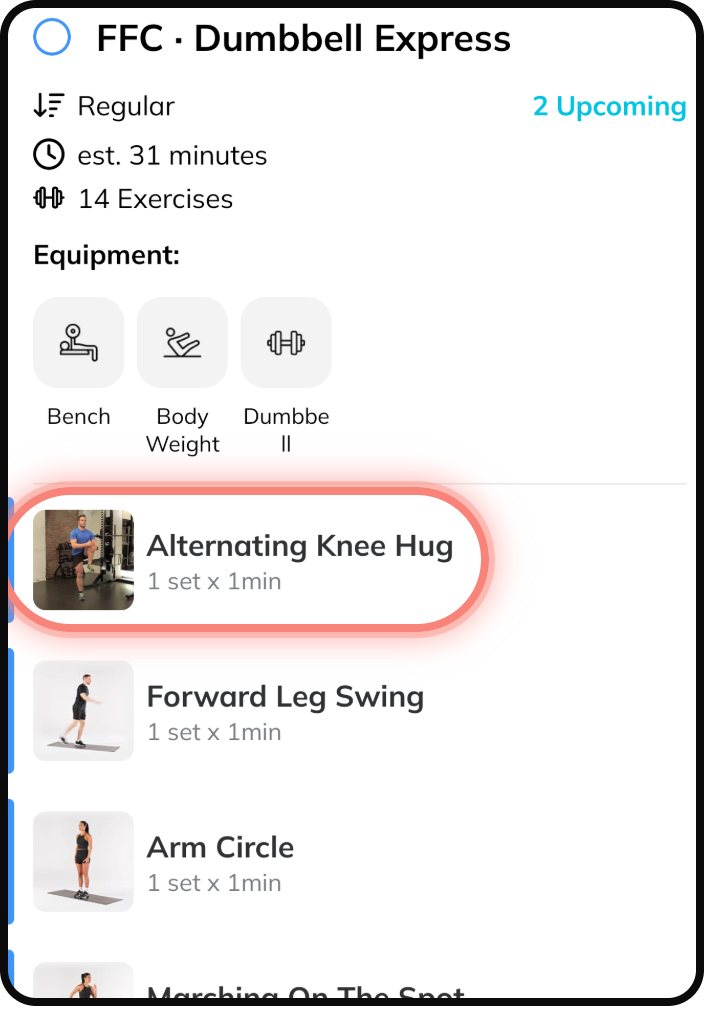
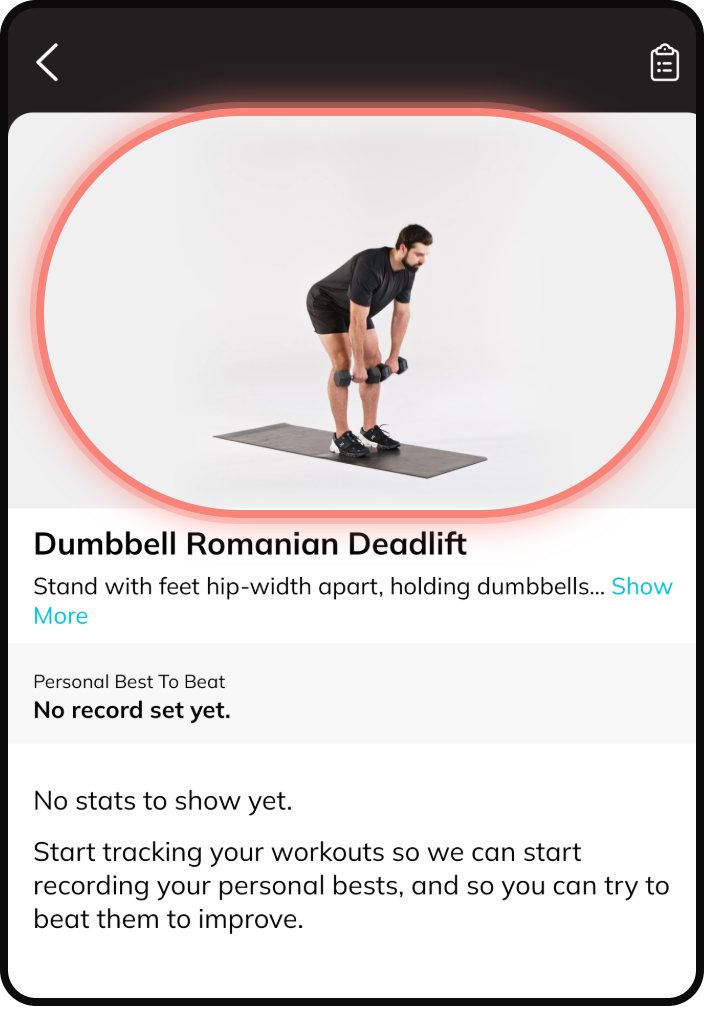
2. Watch the video. Tap Show More to read the steps.
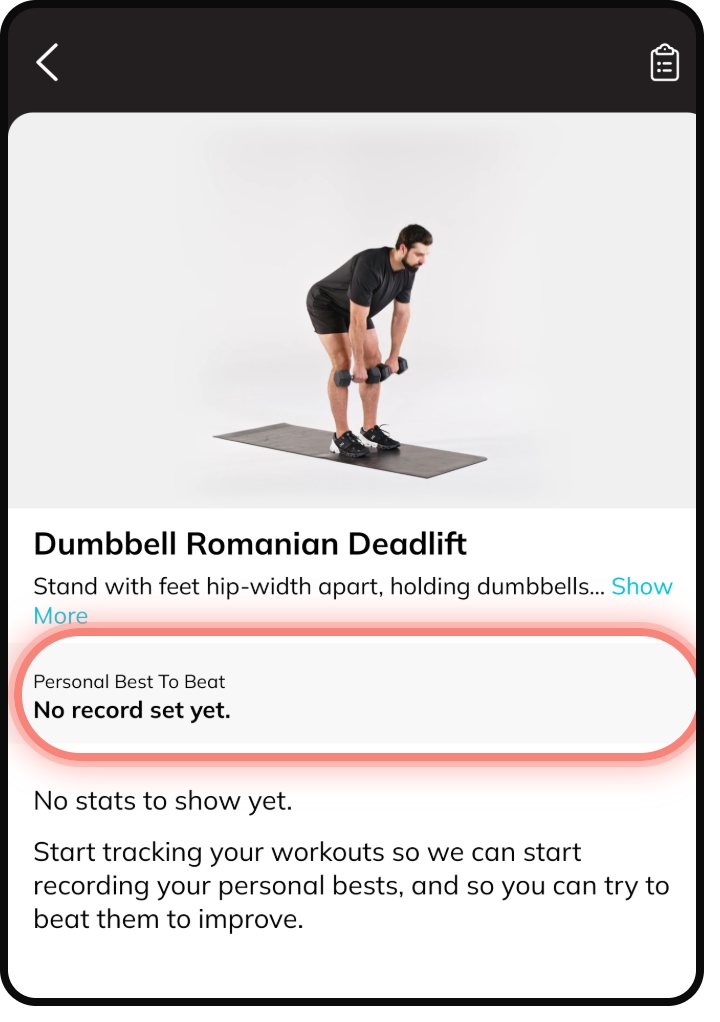
3. The app keeps your personal best right here, so you always know what to beat.
4Pick any workout from your list
Or follow the steps:
1. Tap Workouts at the bottom of the screen.
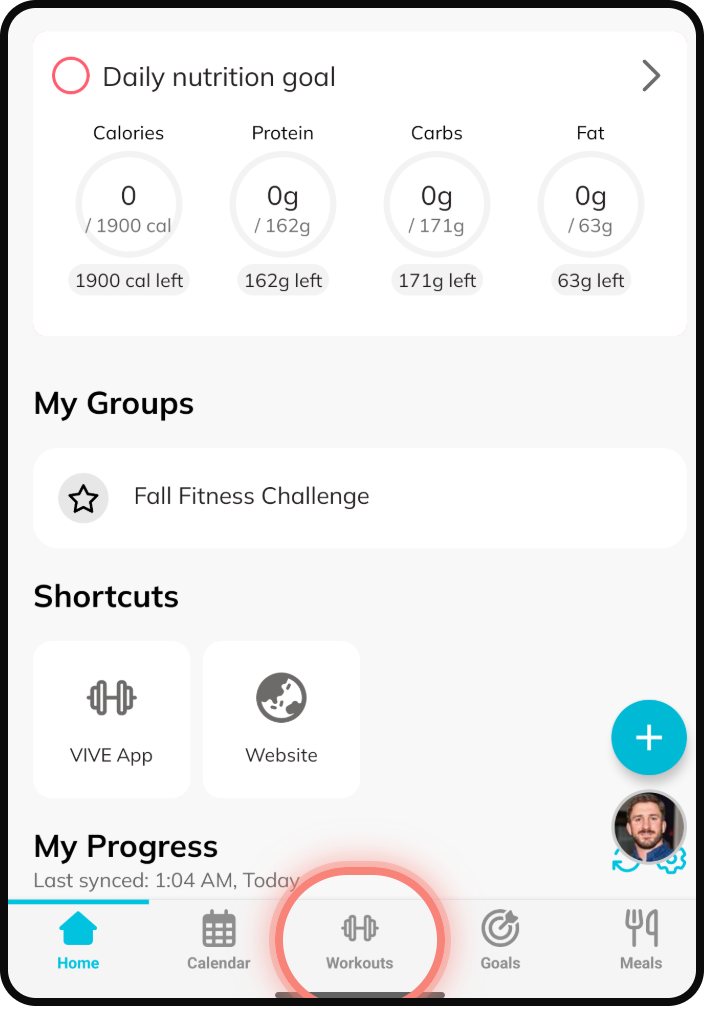
2. These are workouts built by VIVE coaches. Tap Show More to see all of them.
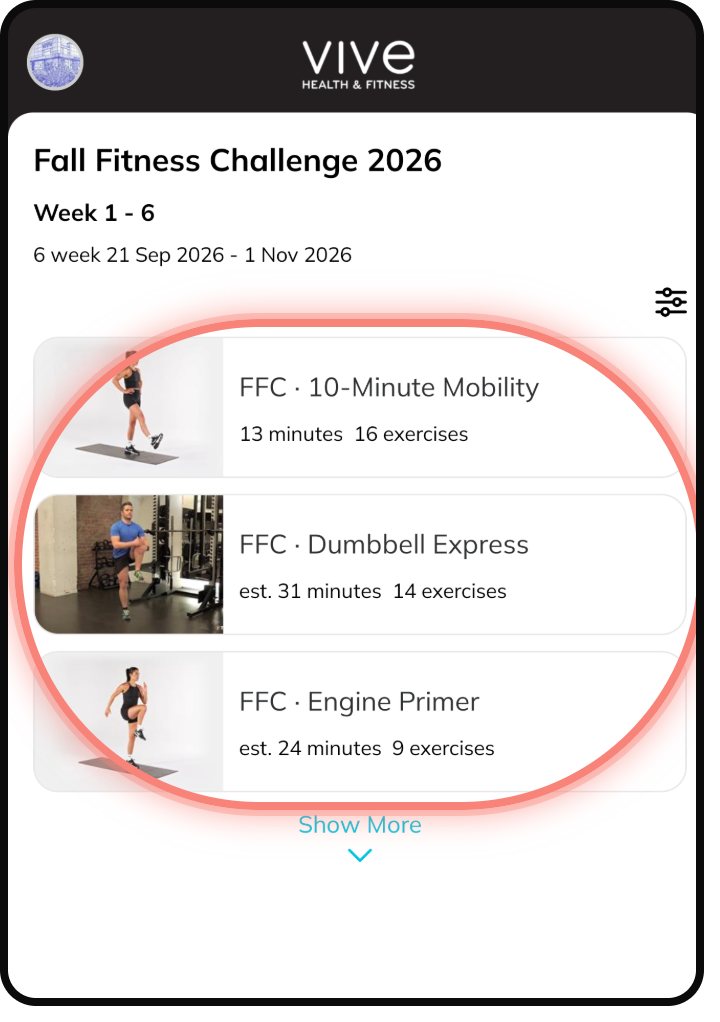
3. Tap any workout, then tap Start Now. Do any workout, on any day.
5Build your own workout
The steps in the video:
1. On Home, tap the blue plus button. Tap Workout, then Regular.
2. Search for an exercise and tick its box. Add as many as you want, then tap Add.
3. Want a circuit? Tick the exercises and tap Circuit at the bottom. This part is optional.
4. Tap Start Now.
5. Type your reps and weight for each set.
6. Tap the button in the top right when you finish. Rate how hard it felt, then tap Done.
6Log a missed workout, or move one
The steps in the video:
1. Missed a workout? On Home, tap the day you missed, then tap the workout.
2. Tap Start Now and log it like any other day.
3. Save it, rate it, and tap Done. It is saved on the day you missed.
4. To move a workout, open it, tap the three dots in the top right, then Move To Another Day. Pick the day.
7Connect your watch
Or follow the steps:
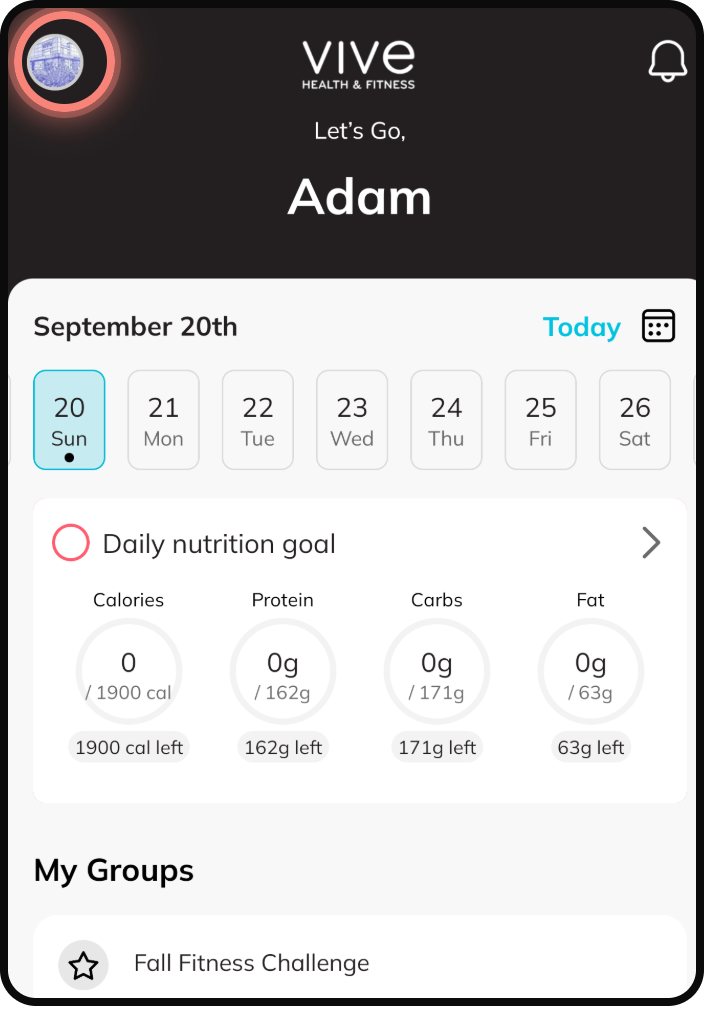
1. Tap your photo in the top left corner.
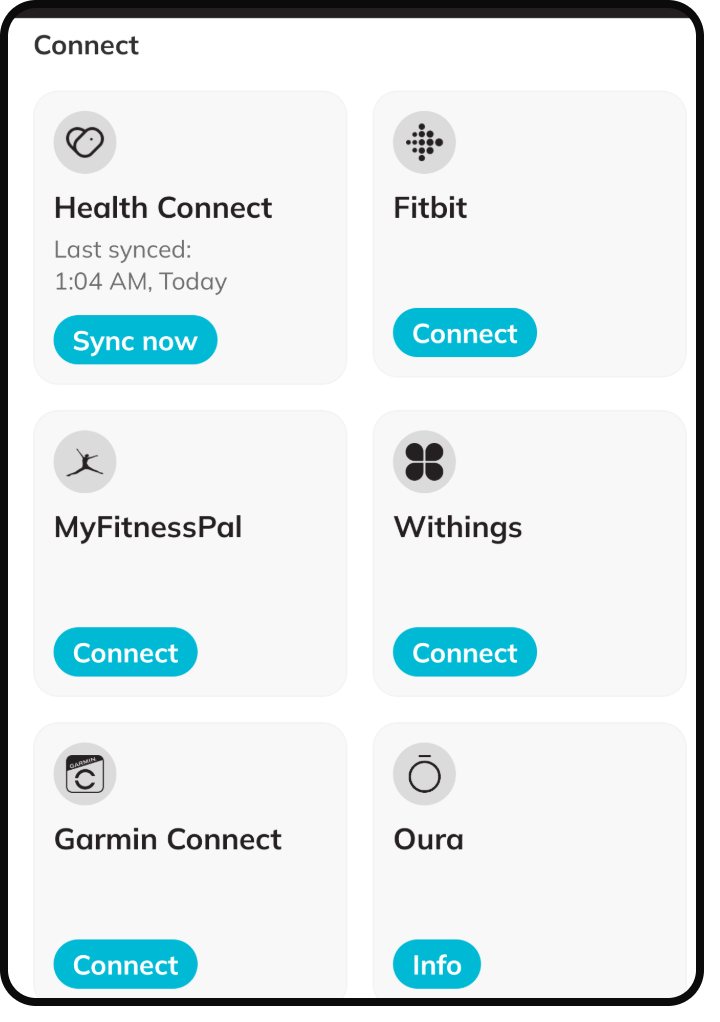
2. Scroll down until you see Connect.
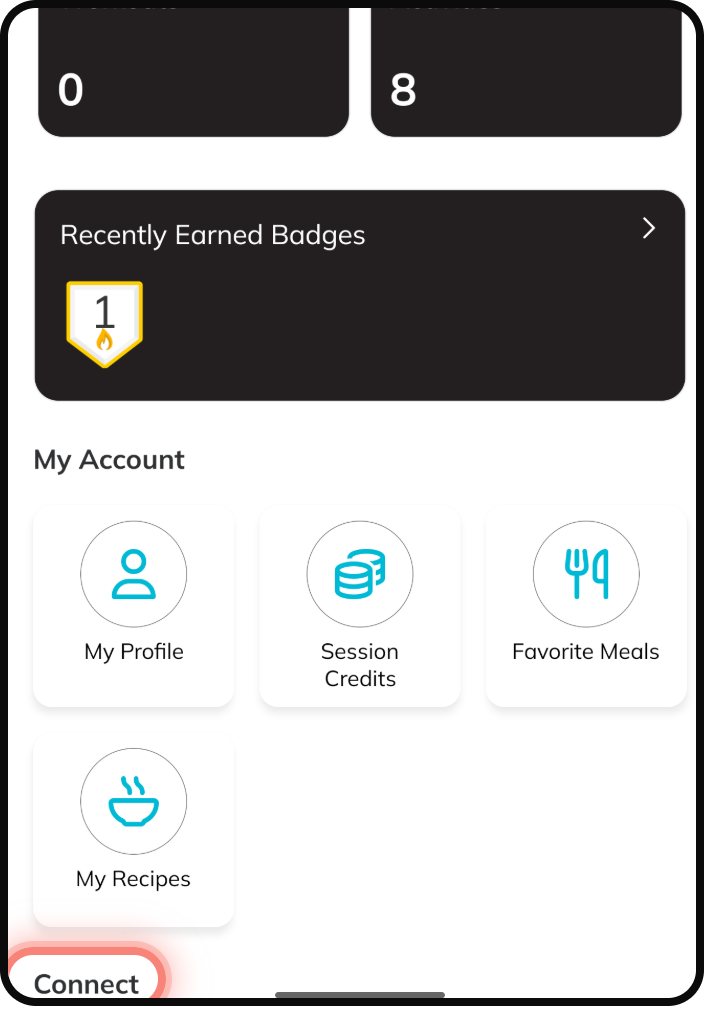
3. Find your device and tap Connect. Fitbit and Garmin are listed by name. An Apple Watch connects through Apple Health.
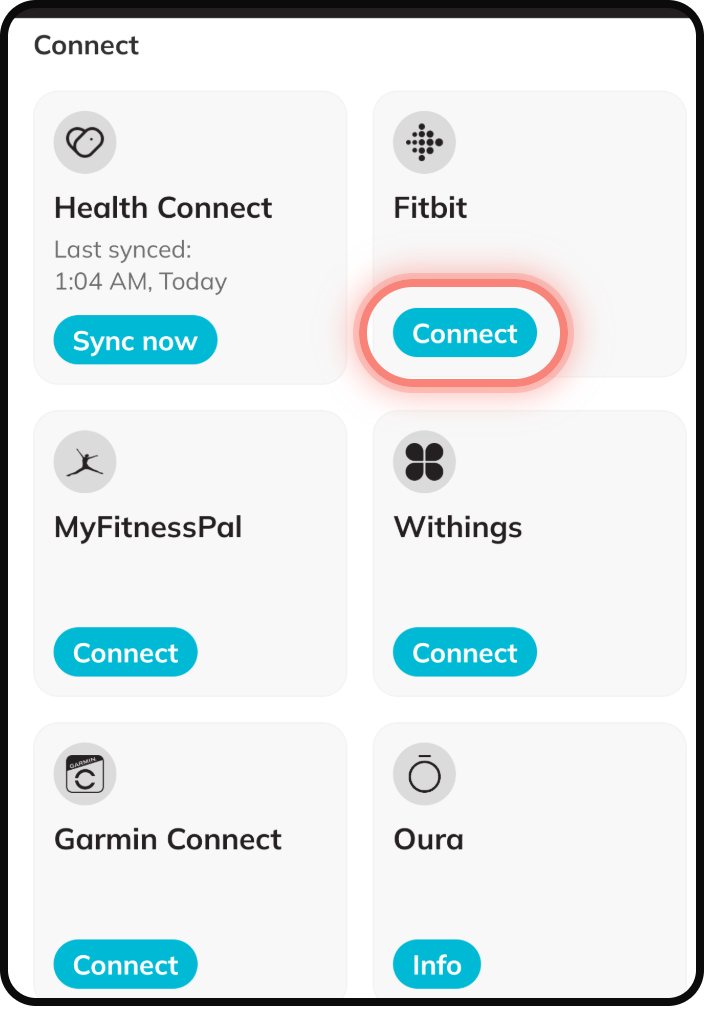
4. Sign in when it asks. After that, your walks and steps come into the app on their own.
8Log a meal
Or follow the steps:
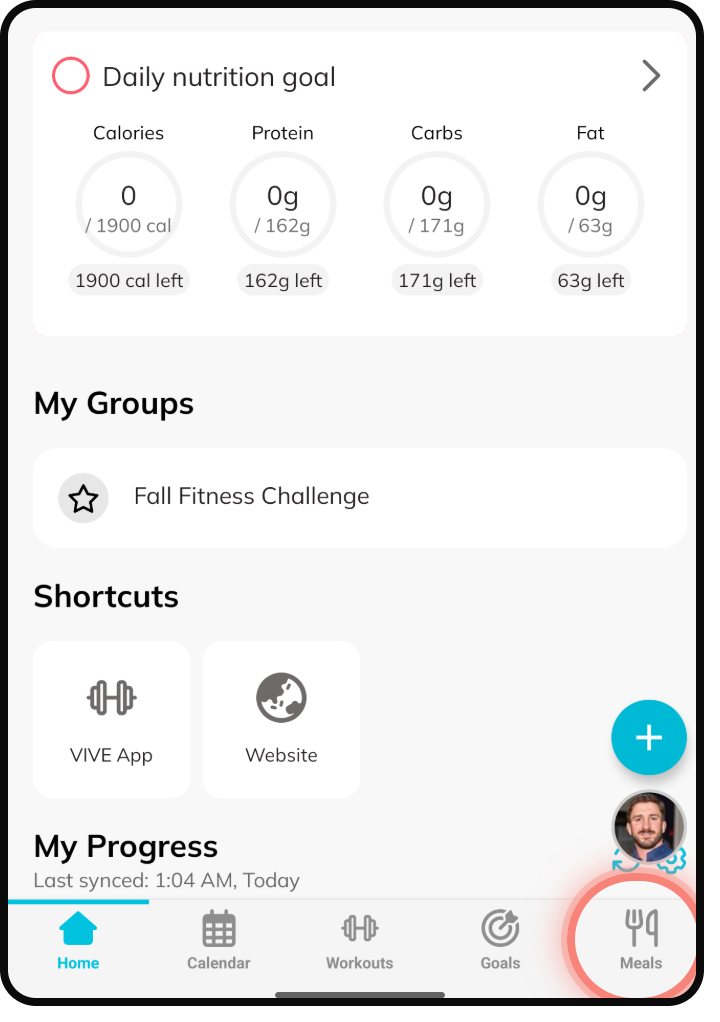
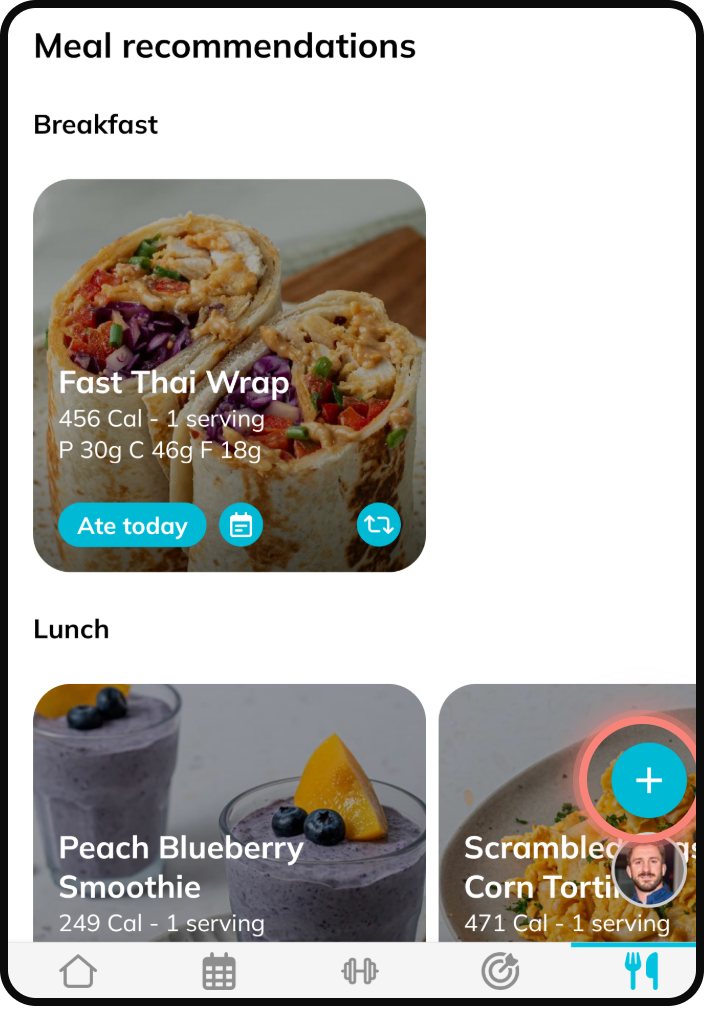
1. Tap Meals at the bottom of the screen.
2. See something you ate? Tap Ate today.
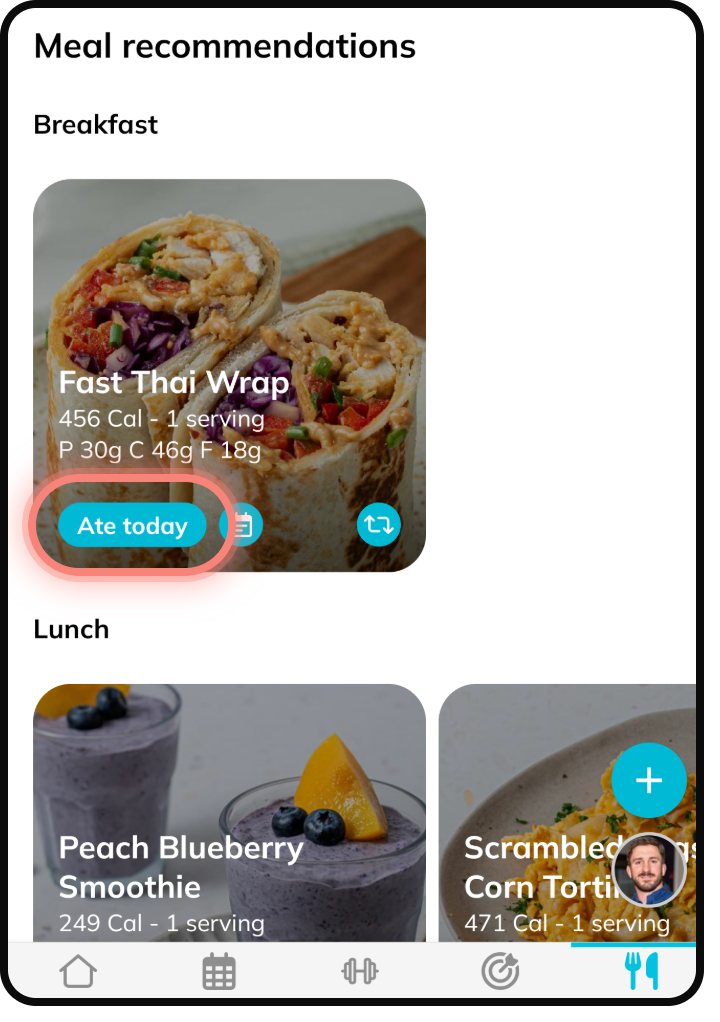
3. Or tap the blue plus button to add your own meal. No points for this one. It is there whenever you want it.
9Message your trainer
Or follow the steps:
1. Have a question? Tap the round photo in the bottom right corner.
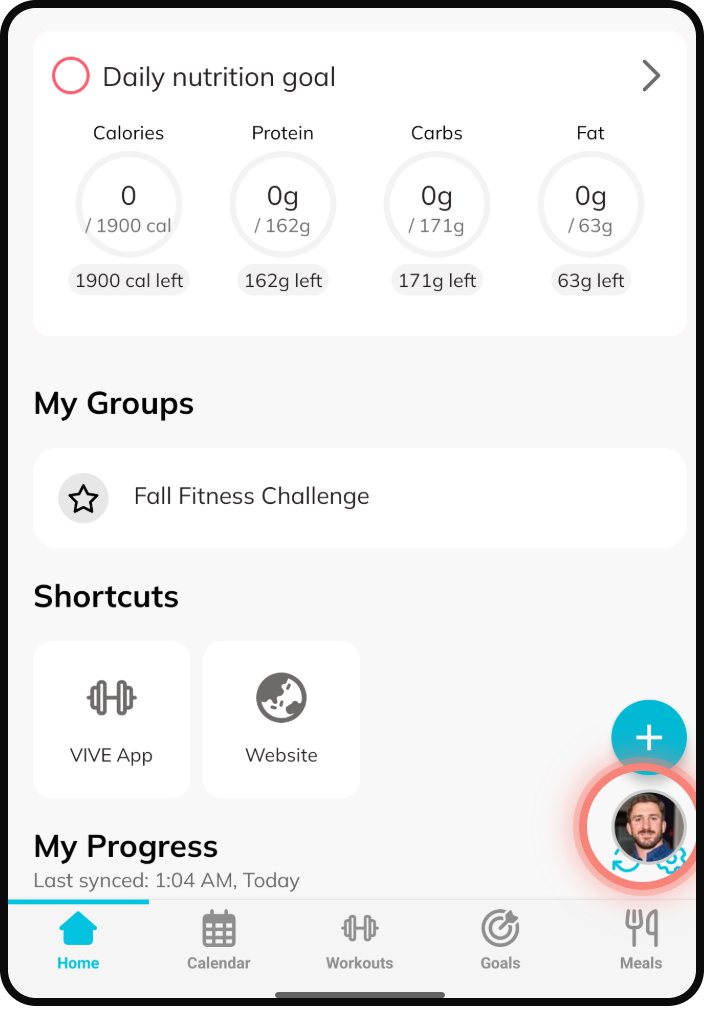
2. Type your question and send it. A VIVE trainer will answer.
More short videos
These come from the company that makes the app. Their colors and names look a little different from ours, but every button is in the same place.
Getting around the app
Doing a workout, start to finish
Doing a timed workout (mobility, stretching)
Logging cardio
Swapping an exercise when a machine is taken
Your exercise history and personal bests
Building your own workout
Using the meal tracker
Serving sizes in the meal tracker
Body stats and progress photos
Need a hand?
Tap the round photo in the bottom right of the app and send us a message.
Don't have the app yet? Get VIVE Coaching